Chatgram - Support for Slack

Answer your website visitors from Slack

Chatgram adds a live chat and contact form to your website. With the Chatgram - Support app, every new conversation arrives in Slack as a ticket card. Reply, translate, ask the AI for a draft, or close the ticket, all without leaving Slack. The visitor gets your answer on your website or by email.

द Add to Slack button is public: no login is needed to install. You connect a free Chatgram account afterwards, inside Slack. By installing you agree to our गोपनीयता नीति.

Free planअसीमित एजेन्टहरू180+ भाषाUninstall any time

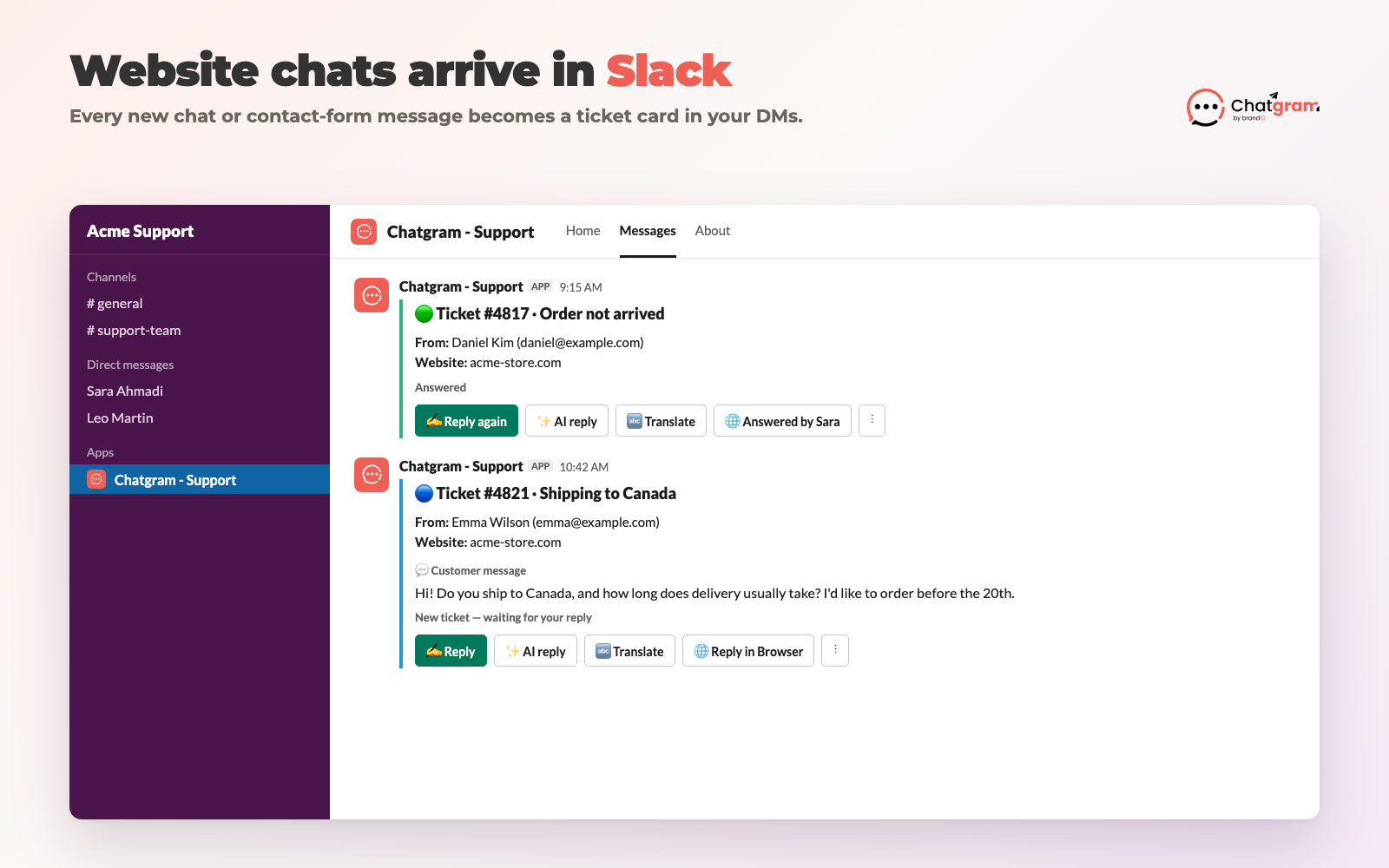
A new ticket as it arrives in Slack
How to install

Up and running in three steps

You need permission to install apps in your Slack workspace. Everything else is free and takes about two minutes.

चरण 1

Add the app to Slack

  1. Click Add to Slack on this page.
  2. Pick your workspace in the top-right corner of the Slack page.
  3. Review the permissions and click Allow.
  4. You'll see "Chatgram installed!". Go back to Slack.
चरण २

Connect your Chatgram account

  1. In Slack, open Apps → Chatgram - Support in the sidebar and open the गृहपृष्ठ tab.
  2. No account yet? Create a free Chatgram account with your email. We email you a sign-in link, no password needed.
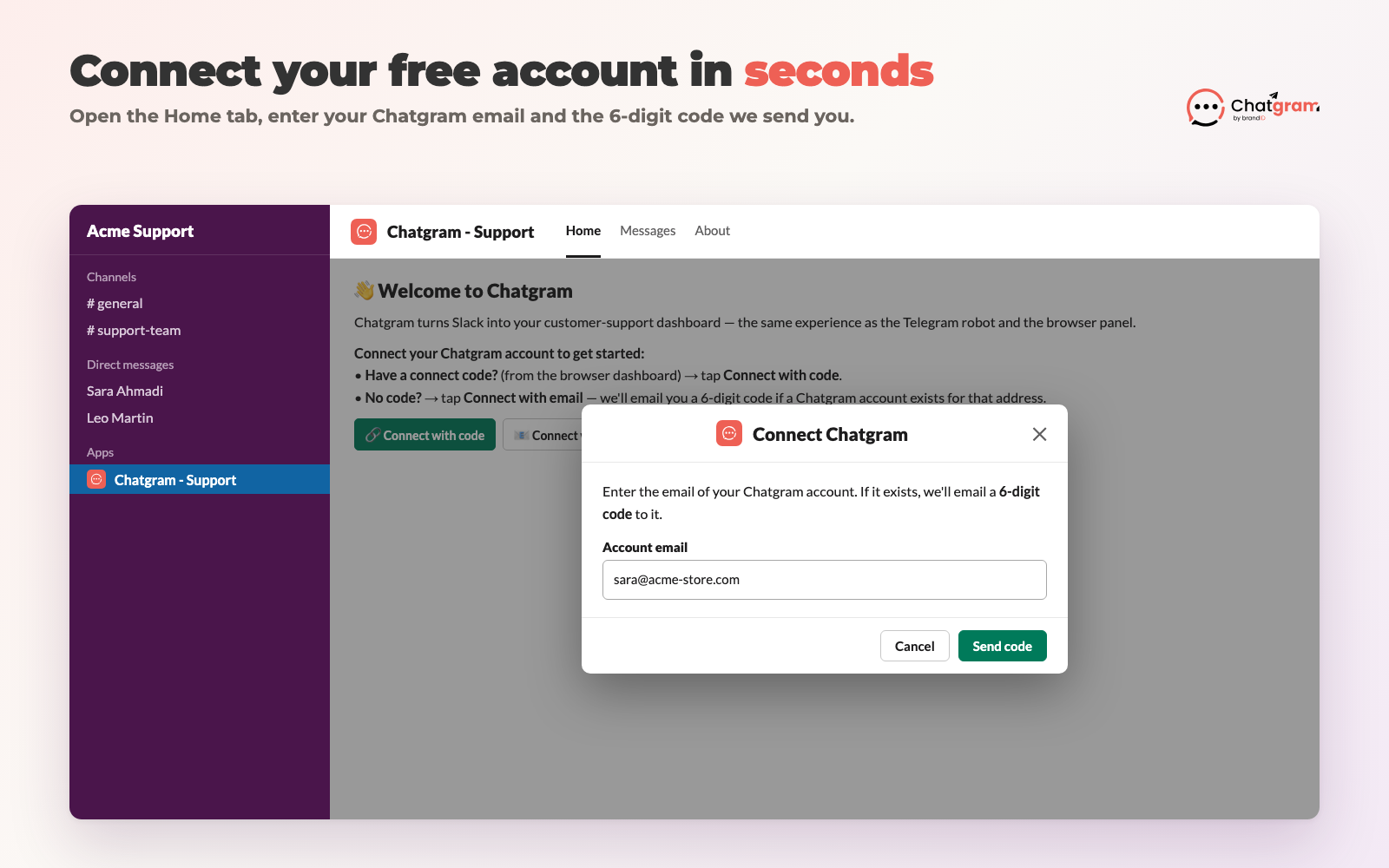
  3. Back in the Home tab, click Connect with email, type the same email and enter the 6-digit code we send you.
चरण ३

Add Chatgram to your website

  1. मा Chatgram dashboard, add your website and copy the install snippet, or use our Shopify app वा WordPress plugin.
  2. New chats and contact-form messages now arrive in Slack as ticket cards from the app.
  3. प्रकार /chatgram help in Slack any time to see every command.
Already have a Chatgram account? Skip the sign-up in step 2. You can also click Connect Slack in the Chatgram browser dashboard to get a one-time code, and paste it with Connect with code in the Slack Home tab (or type /chatgram link <code>). Team members you invite as agents join with /chatgram join <invite-code>.
What it does in Slack

Your support inbox, inside Slack

Each team member who connects their Chatgram account gets tickets as direct messages from the Chatgram - Support app.

📩
Tickets arrive as cards

Every new website chat or contact-form message shows up with the visitor's name, email, website and message, plus a colour that tells you if it's new, answered or closed.

✍️
Reply without switching apps

Click Reply, type your answer and send. The visitor sees it in the chat on your website, or by email if they've left.

✨
AI-drafted replies you review

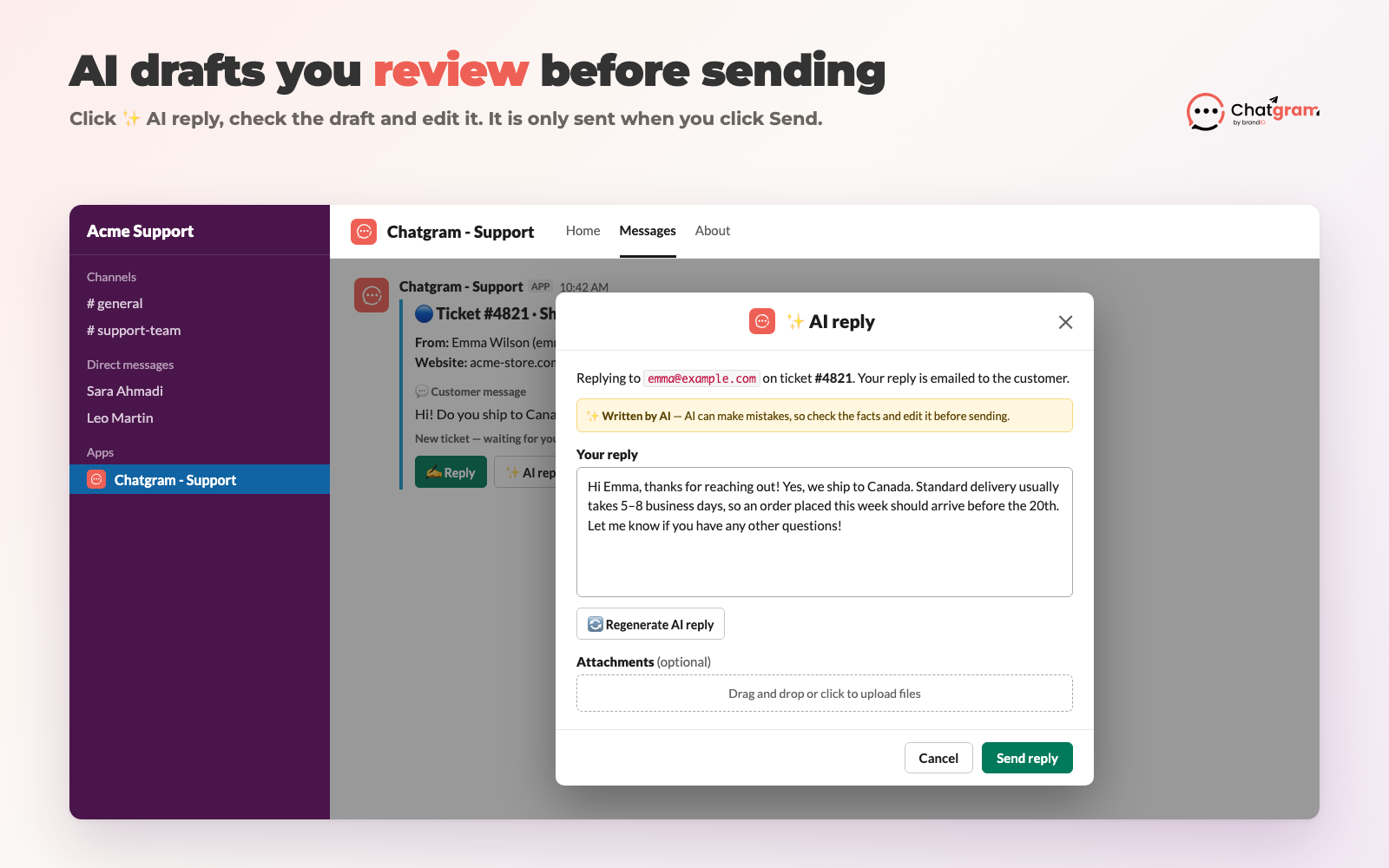
Click AI reply and Chatgram writes a draft from your website's knowledge base. The draft opens in an editor first, so you check and edit it before anything is sent.

🔤
Translate both ways

Translate a visitor's message into your language with one click, and answer customers in 180+ languages.

🎛️
A dashboard in the Home tab

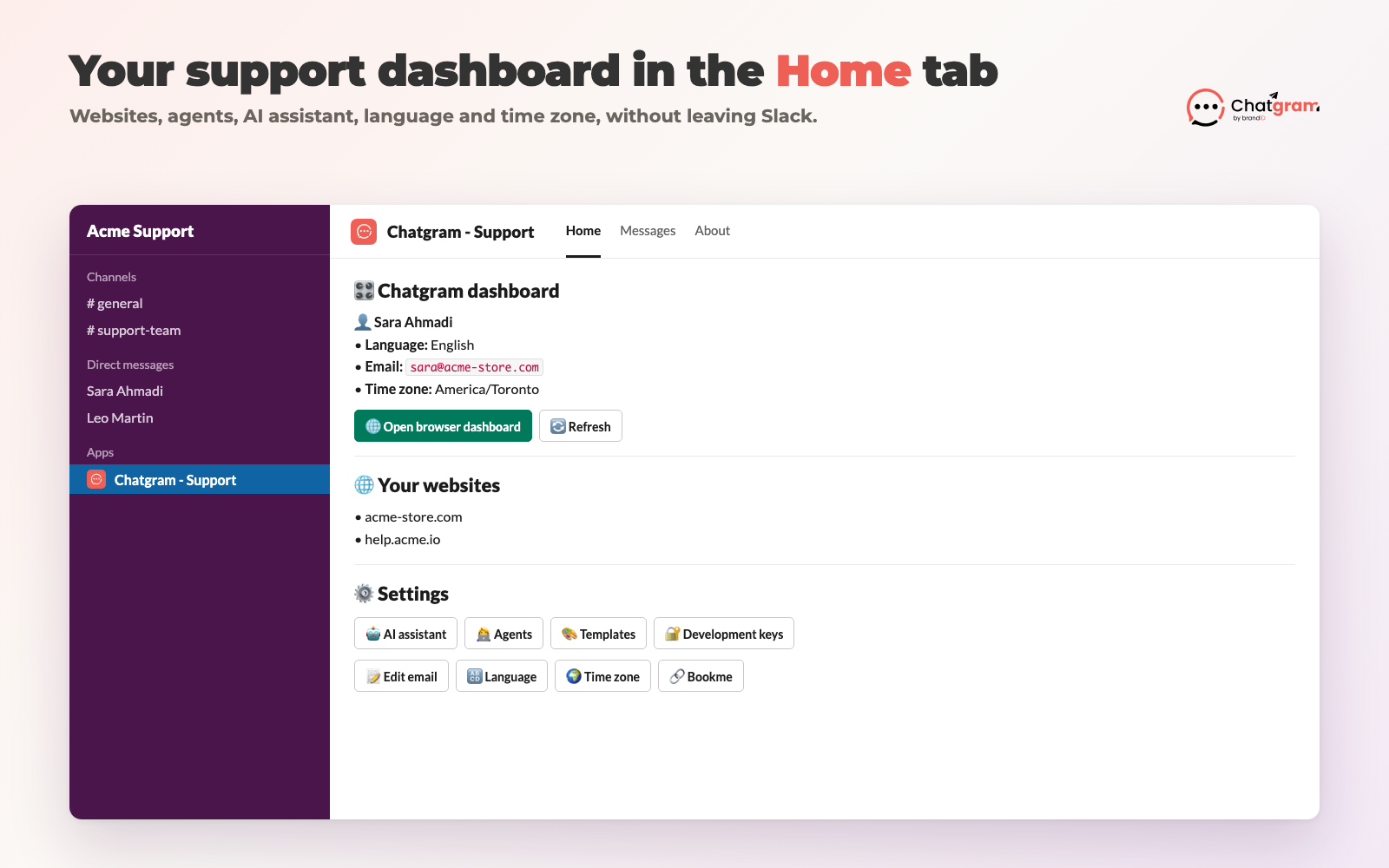
See your websites, manage agents and roles, set your language and time zone, and open the browser dashboard.

📛
Close, spam or delete

Tidy up from the ⋮ menu on each card. Spam and delete ask you to confirm first.

A new support ticket card in a Slack direct message
New tickets arrive as direct messages with action buttons.
The AI reply editor in Slack with an editable draft
AI drafts open in an editor so you review them before sending.
The Chatgram dashboard in the Slack App Home tab
The Home tab is your Chatgram control panel.
Connecting a Chatgram account from the Slack Home tab
Connect your account with an email code.

AI disclaimer: answers can be wrong

Chatgram uses large language models (provided by OpenAI) to draft replies, translate messages and, if you turn it on, answer website visitors automatically. AI output is generated automatically and may be inaccurate, incomplete, out of date or inappropriate, even when it sounds confident.

  • AI replies in Slack are drafts. They open in an editor and are only sent when a person clicks Send. Please check every draft before you send it.
  • Automatic AI answers on your website are off until a website admin turns them on. When on, your team still sees every conversation in Slack and can step in at any time.
  • Translations are machine-generated. Check important wording, such as prices, policies and legal terms, before relying on it.
  • Don't use AI output as legal, medical, financial or other professional advice. You stay responsible for what your team sends to customers.

Message text is sent to the AI provider only to produce the draft, translation or answer you asked for. We don't use your Slack or customer data to train AI models. See the गोपनीयता नीति for details.

Permissions

What the app asks Slack for, and why

The app only works in direct messages between the Chatgram - Support app and the people who connect their account. It does not read your channels.

ScopeWhy we need it
chat:writeSend ticket cards and confirmations to you in the app's direct messages.
im:write, im:read, im:historyOpen the direct message with you and read the replies you type to the app there (for example, a reply to a ticket).
users:read, users:read.emailShow your name and match your Slack profile email to your Chatgram account when you connect.
files:read, files:writeSend files you attach to a reply to the customer, and show files customers attach to a ticket.
commandsद /chatgram command (connect, join, panel, help).
reactions:writeAdd a reaction to your message to show a reply was delivered.
Privacy & support

Your data, in plain words

Privacy

  • We store your workspace ID and name, an encrypted bot token, and the Slack user IDs of people who connect a Chatgram account.
  • We store the ticket messages your team sends through Slack, so the conversation history is the same in Slack, the dashboard and Telegram.
  • We never sell your data or use it for advertising.
  • When you uninstall the app, we delete the workspace's bot token and stop all access right away.

Read the full Chatgram for Slack privacy policy and the brandID privacy policy.

सहयोग

Questions, bugs or data requests? Email [email protected].

To uninstall: in Slack, open Apps → Chatgram - Support → About → Configuration and click Remove App. You can also type /chatgram unlink to disconnect just your own account.

Chatgram is made by brandID. See plans and pricing.

Bring your website support into Slack

Install the app, connect your free Chatgram account, and your next website chat lands in Slack.

Add to Slack